
A furnace quits at two in the morning. The homeowner calls the first heating company on Google, gets voicemail, and calls the second one. Whoever picks up gets the job.
Quick answer: An AI answering service for HVAC and plumbing is a Voice AI agent on your business line. In GoHighLevel you build it under AI Agents, Voice AI: write a prompt that tells it what to collect, add an Appointment Booking action tied to your service calendar, ask for the caller's address, turn on post call summaries, test it with a free web call, then deploy it to your number with Use as backup or full answering and the working hours you want.
What does an AI answering service do for a heating and plumbing company?
It picks up the phone when your team can't, talks to the caller, books the service call into your calendar and writes up what was said. In the video we build one for Harbourline Heating & Plumbing, a demo heating and plumbing company in Barrie. It collects the caller's email and address, books into the calendar with a three hour gap between jobs so a tech can actually get there, and emails a summary of every call to the office.
Trades have a specific problem here. The people who answer the phone are often the same people holding a pipe wrench. A general answering service takes a message. This one can book the job.
If you're still comparing options, our guide to AI receptionists for small business covers the bigger picture. This post is the hands on setup for trades.
What do you need before you start?
- A phone number in your account. Per HighLevel's Voice AI overview, Voice AI only works with LC Phone or Twilio numbers. Here's how to get a business phone number in GoHighLevel.
- A booking calendar for service calls, like a furnace tune up or a free estimate. See how to set up a booking calendar.
- Your real details: services, service area, hours, what counts as an emergency. The agent only knows what you give it.
How do you build the agent?
- Open Voice AI. Go to AI Agents, then Voice AI. The Dashboard and logs tab says no agent is live until you give one a phone number. The Agent list tab shows every voice agent you've built.
- Create the agent. Click Create agent. You get three choices: browse the marketplace for a ready made agent, create a custom agent from scratch, or use the flow builder to map every step of the call. We built a custom one called Harbourline Phone Receptionist. If you try a marketplace agent, read what it does before installing it. It's going to talk to your customers.
- Pick the voice, model and language. These sit across the top of the Build tab, next to an estimate of what each minute of talk time will cost.
- Write the prompt. This is the agent's job description: who it is, what it's trying to do and the rules it follows. Ours gathers the caller's details, uses a tool when the question matches one, and never makes up an answer. If it doesn't know, it says someone from the team will call back.
- Write the welcome message. Ours says: "Hey, you've reached Harbourline Heating & Plumbing, how can I help you today?" Keep it short. Someone with water on the basement floor wants to get to the problem.
How does it book the service call?
The middle column of the Build tab lists what the agent can do during a call. Click New Action for the full list: transfer the call to a person, trigger a workflow, send a text, update a contact field, book an appointment, send a WhatsApp message, call a custom API, hand off to another agent or connect an MCP server.
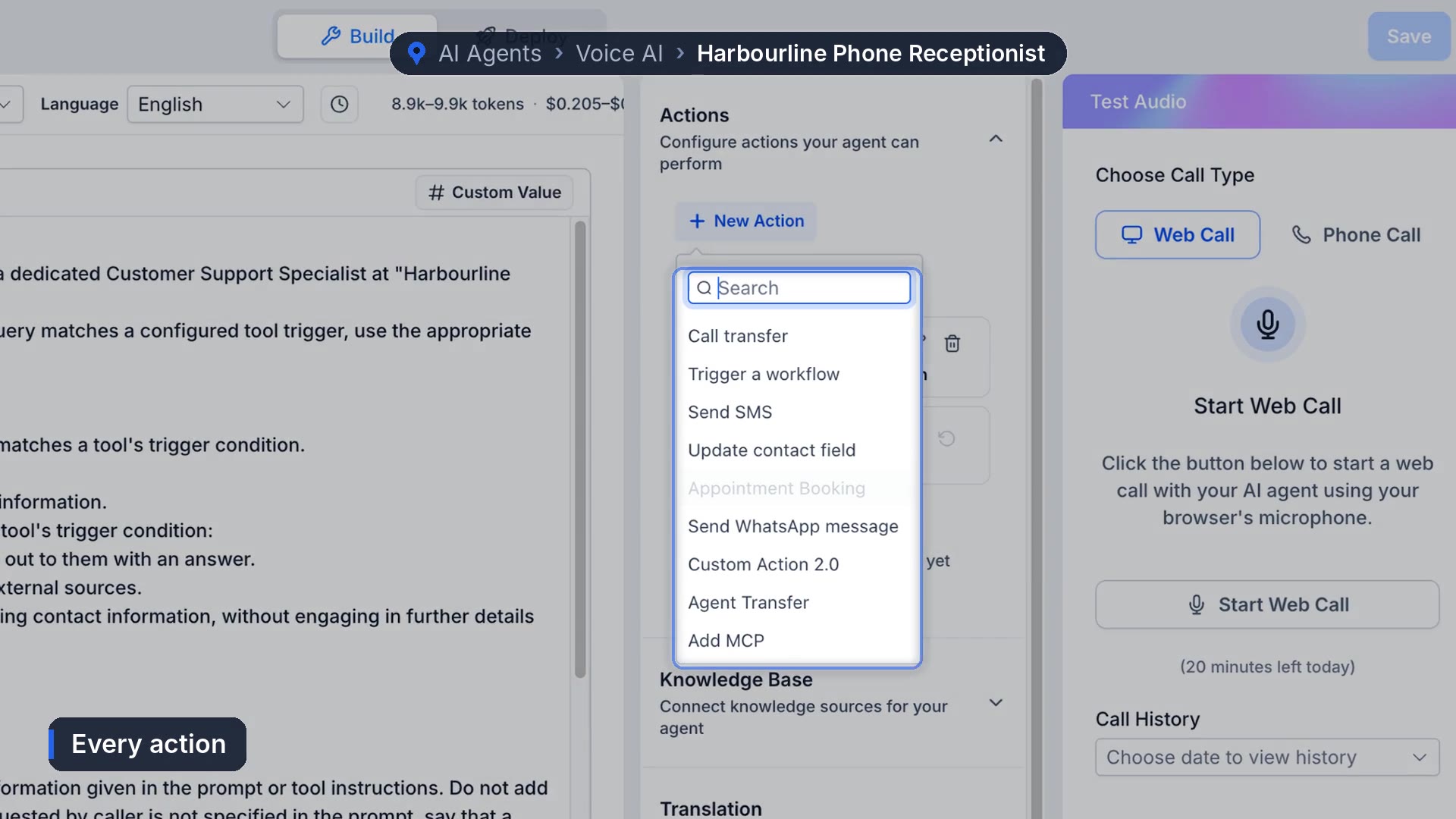
- Add Appointment Booking and pick the calendar it books into.
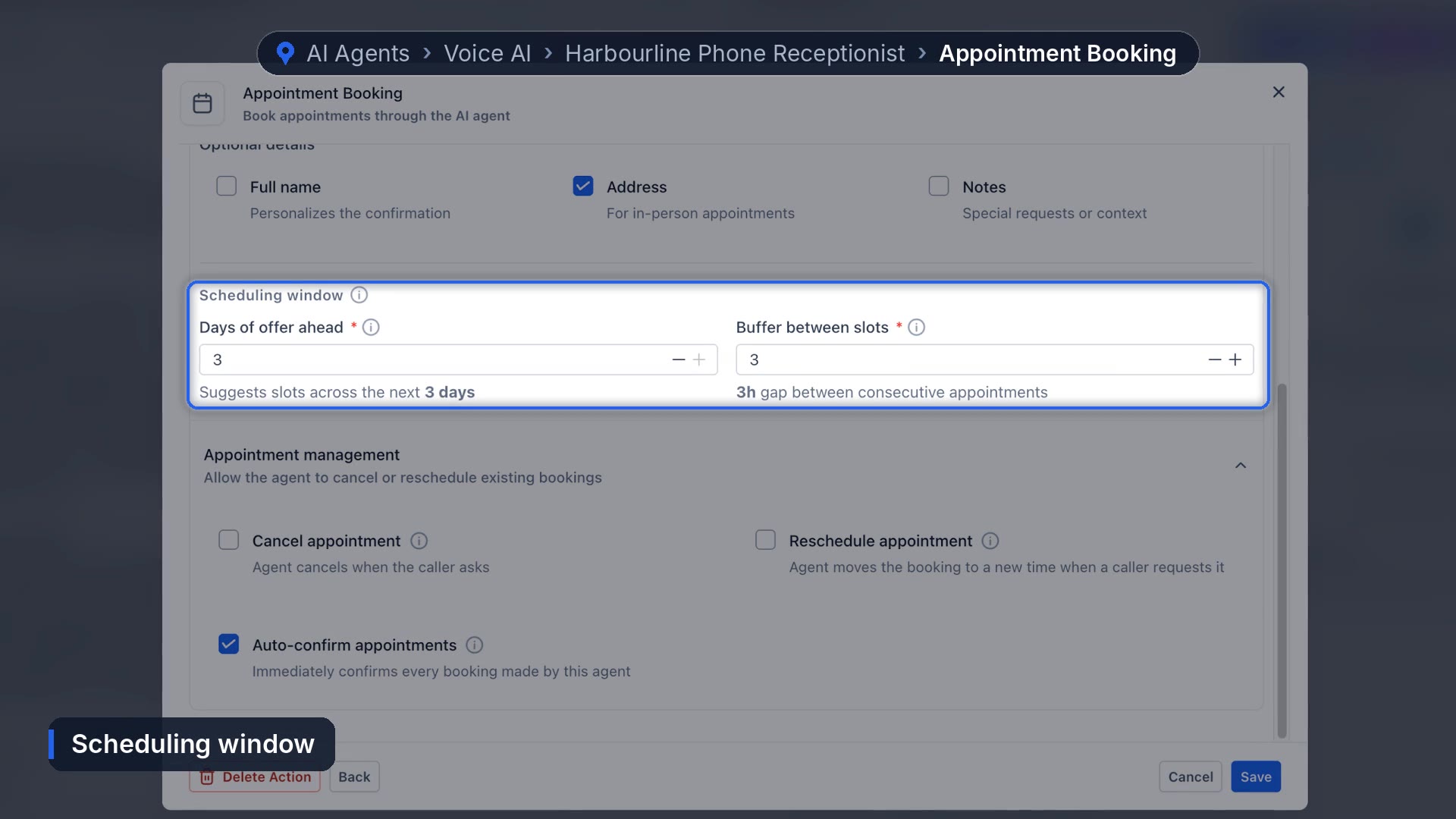
- Choose what to collect. Email sends the caller a calendar invite. Tick Address too, because your tech needs to know where the job is.
- Set the scheduling window. Ours offers times across the next three days with a three hour buffer between appointments.
- Decide whether it can cancel or reschedule, and whether it auto confirms every booking it makes.
Below the actions are the knowledge base and translation. A knowledge base lets the agent answer questions about your services and service area. We cover it in how to build a knowledge base in GoHighLevel.
What happens after the call?
Under Post-Call, the agent saves a summary of every call to the contact's notes and emails it to the people you pick. You can also start a workflow the moment a call ends, like a text with the appointment details. For a dispatcher, the summary is the part you'll read most.
Turn on Show advanced settings for more control. In the video the longest call is set to 15 minutes, and if the caller goes quiet the agent checks in after four seconds and ends the call after 15 seconds of silence. Most businesses never touch the rest, and that's fine.
How do you test it?
On the right of the Build tab is Test Audio. Start a web call and talk to the agent from your browser, or have it call your phone. You get 20 minutes of testing a day, and test calls show up in the call history below.
Test it like a real week of calls. Ask a hard question. Be an angry caller. Be the person who talks for five minutes before getting to the leak.
Should the AI answer every call or only the ones you miss?
Switch to the Deploy tab, pick the phone number and choose call routing. Answer calls directly means the AI picks up every call. Use as backup means it only answers when nobody on your team does.
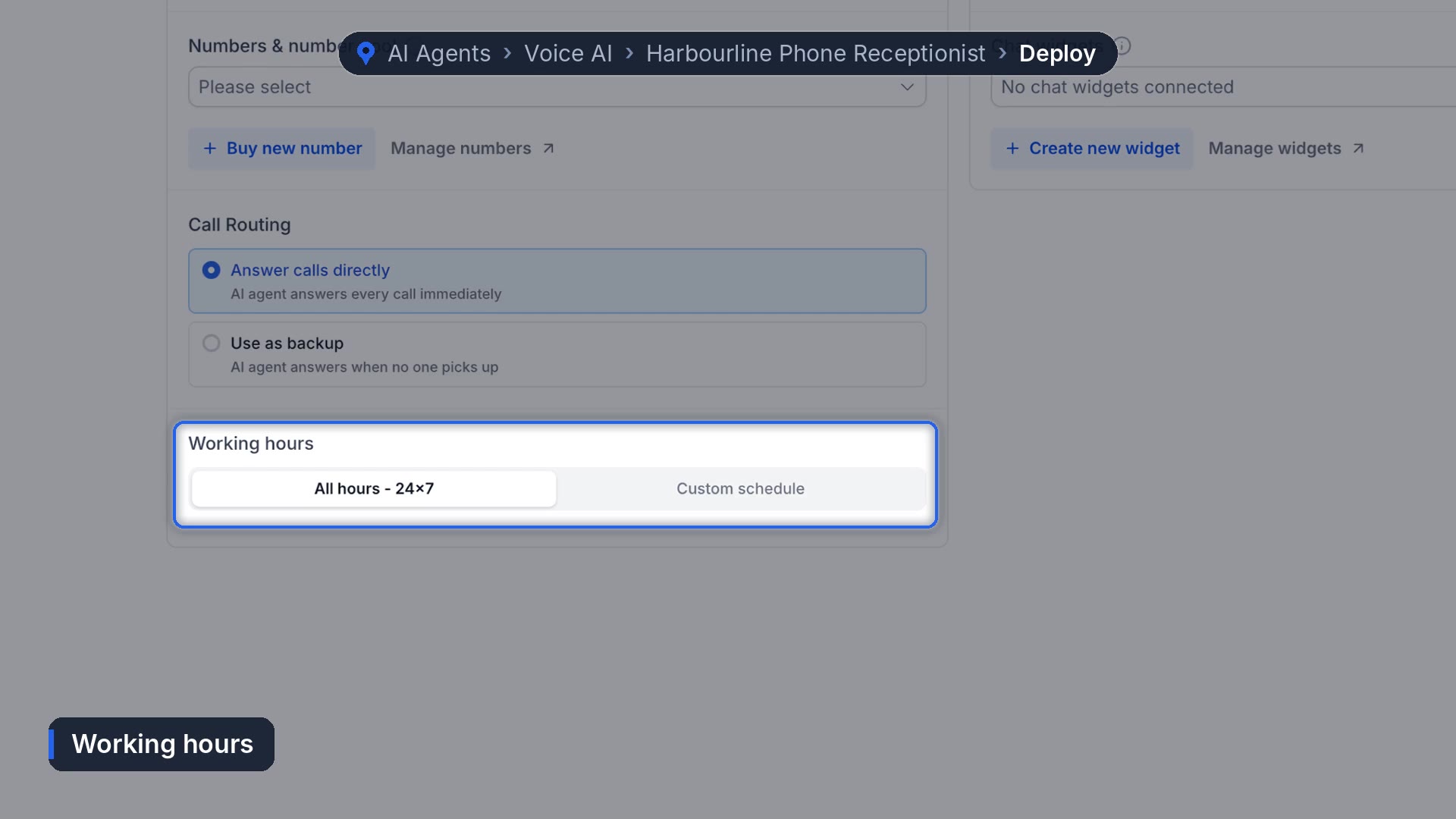
Working hours can be All Hours or a Custom Schedule. HighLevel's working hours guide says custom schedules can run through midnight, which suits an evening and overnight shift. A lot of trades let staff answer during the day, then hand nights and weekends to the AI.
If you'd rather start with a press one, press two menu that routes calls to your techs, see how to build an IVR phone menu. And for a shorter version of this setup, there's our Voice AI receptionist walkthrough.
Where an AI answering service falls short
It's only as good as the prompt and the details behind it. A vague prompt means it guesses, and a guessing receptionist is worse than voicemail. Tell it to take a message when it doesn't know.
Two practical catches from HighLevel's inbound call flow guide: if you forward calls and a local voicemail grabs the call first, the call is marked completed and the AI never answers, so keep the forwarding timeout low. And talk time is billed per minute, so check the estimate on the Build tab before you route every call to it.
What we can't tell you is how your callers will take to it. Some people hang up on anything that sounds automated. Read the call summaries for the first two weeks, fix the prompt where it trips up, and decide from your own calls whether it answers everything or only backs you up. A missed call text back is still worth having underneath it. Here's how to set that up.
Frequently asked questions
Can an AI answering service book HVAC and plumbing jobs?
Yes. Add the Appointment Booking action, pick your service calendar and have it collect the caller's address and email.
Can it send emergency calls to a real person?
Yes. Add a call transfer action and describe in the prompt which calls count as emergencies, like no heat or a burst pipe.
Does the AI have to answer every call?
No. Use as backup only answers calls your team doesn't pick up, and working hours let you limit it to nights and weekends.
How do I test it before customers call?
Use Test Audio on the Build tab. You can start a web call or have the agent call your phone, with 20 minutes of testing a day.
Funl is built on HighLevel. Links to HighLevel are referral links, so we may earn a commission if you sign up.