
A furnace dies at 9 p.m. The homeowner calls three companies. The one that picks up gets the job, and the other two find a voicemail in the morning from someone who's already booked. That's the problem a Voice AI agent solves.
Quick answer: In GoHighLevel, go to AI Agents > Voice AI, create or open an agent, write its prompt and greeting, connect a knowledge base, add the appointment booking action, then open Deploy to assign a phone number and choose whether it answers every call or only as backup. Test with Start Web Call before you go live.
What does a GoHighLevel Voice AI agent actually do?
It answers the phone in a natural voice, answers questions from what you've taught it, books appointments into your calendar, and can transfer a call to a person when something can't wait. After the call it can save a summary to the contact and email it to you. According to HighLevel's own help docs, an inbound agent can be reached by a phone number or through a web chat widget where visitors talk to it in the browser.
What do you need first?
A phone number in your account (Settings > Phone System > Add Number) and a knowledge base with your services, hours, service area and prices. If you already have a business line customers know, you can forward it to your GoHighLevel number rather than changing it. The knowledge base is the part people rush, and it's the part that decides whether the agent sounds smart or makes things up. Here's how to build one.
How do you set up Voice AI in GoHighLevel?
1. Create the agent
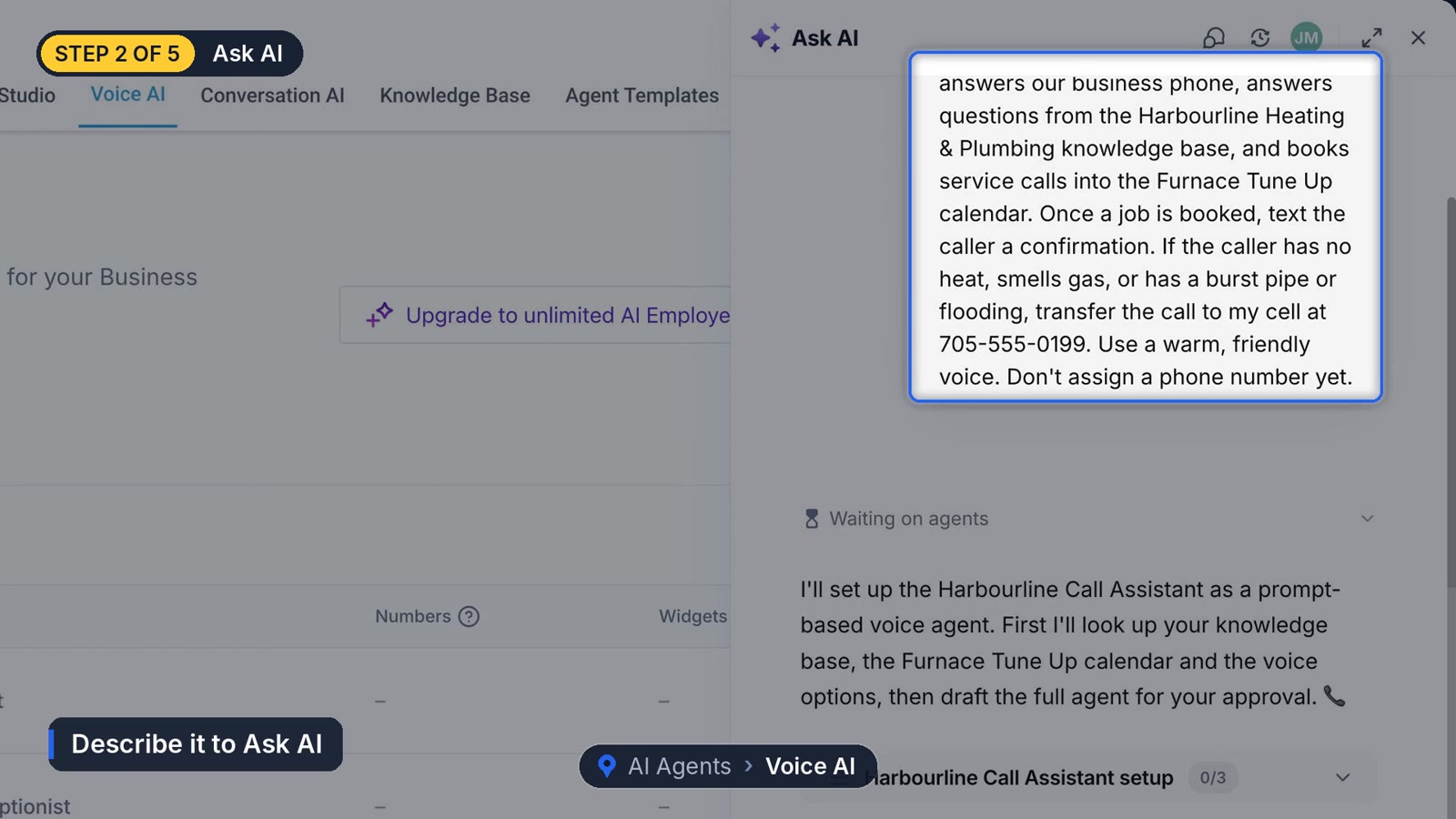
Go to AI Agents > Voice AI. You can build by hand, or open Ask AI from the sparkle icon at the top and describe the agent in plain words. Something like:
Answer the phone for our heating and plumbing company. Use the knowledge base to answer questions. Book jobs into our service calendar and text a confirmation after the call. If the caller mentions no heat, a gas smell or flooding, transfer the call to the owner's cell.Ask AI checks your calendars and voices, shows you the plan, the voice it picked and the greeting, and creates nothing until you click Create Agent.
2. Check the prompt and greeting
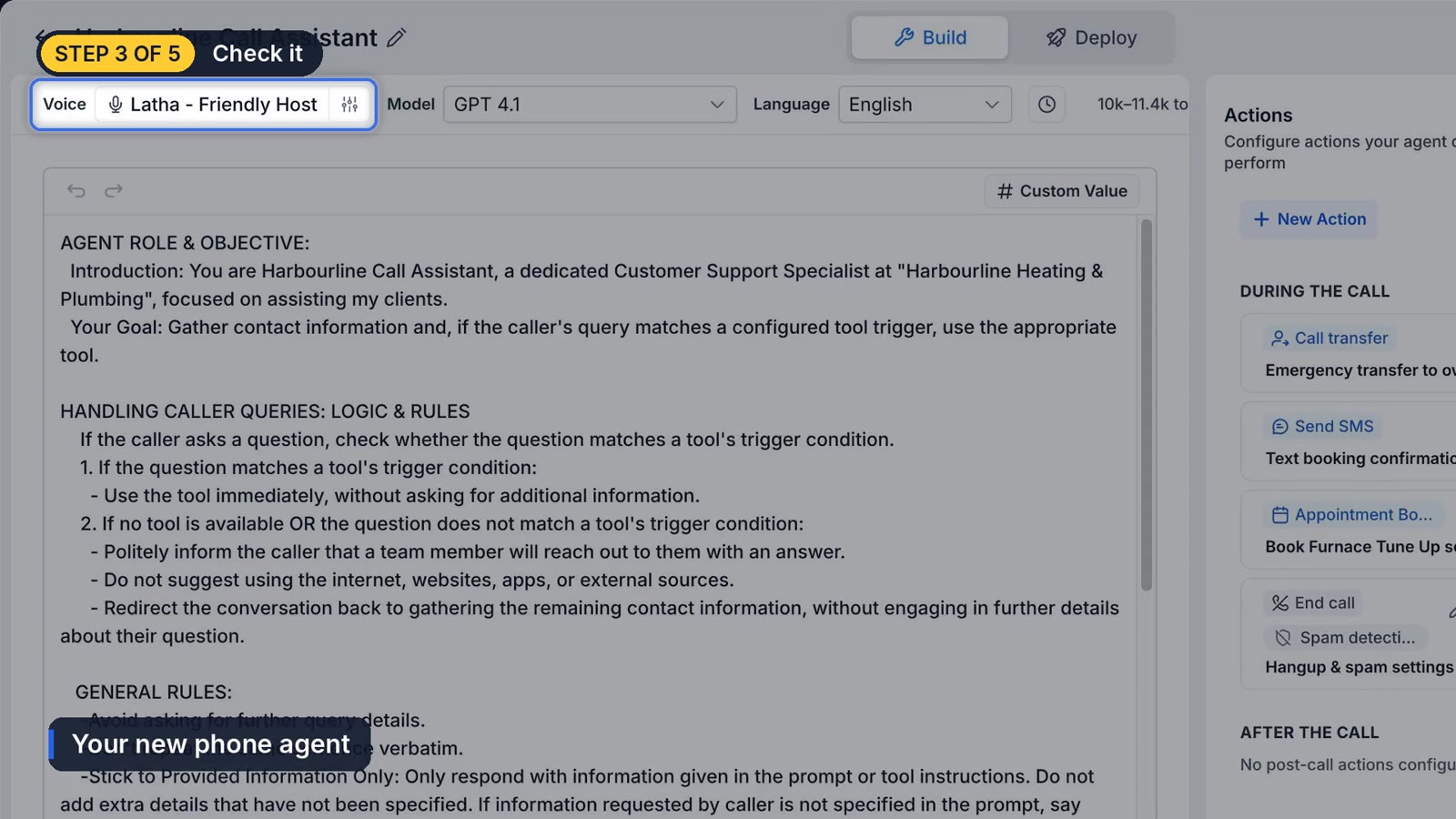
The big box is the agent's instructions. It should say who the agent is, what it's for, and what to do when it doesn't know something. Tell it to take a message instead of guessing. The greeting is the first line callers hear, so keep it to one sentence with your business name in it.
3. Set up the actions
- Appointment booking lets it put callers straight on your calendar.
- Call transfer sends urgent calls to a real number. Be specific in the box that says when to transfer. "Emergencies" is vague. "No heat, gas smell, active leak" is not. Turn on the whisper message so you hear a quick summary before you're connected.
- SMS sends a confirmation text after the call. In our testing that text is a general confirmation. The agent says the date and time out loud on the call.
- End call lets it hang up politely once the job is done.
4. Decide what happens after the call
Under post call settings, save a call summary to the contact and email it to yourself. You'll know who called and why without listening to a recording.
5. Test it with a web call
Click Start Web Call and talk to it through your computer. Try a normal booking and then an emergency. Then call your real number from your cell and book a time. Check that the appointment and the call summary both show up.
6. Deploy it to your phone number
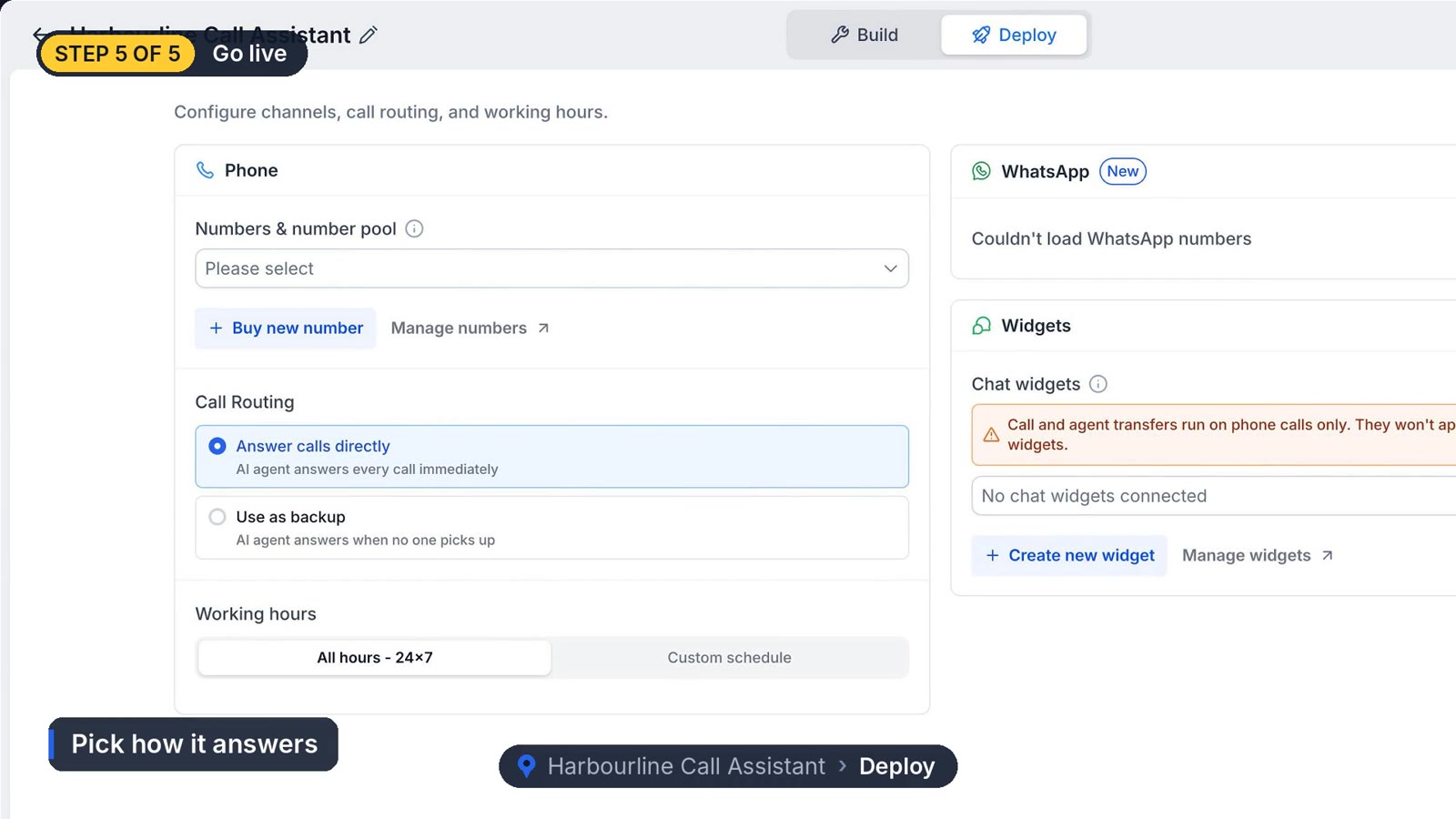
Open Deploy, pick the phone number, and choose the call routing:
- Answer calls directly means the AI picks up every call.
- Use as backup means your phone rings first and the AI only answers when nobody picks up.
Most service businesses start on backup. Then set working hours, either all day or only when you're closed.
Why isn't my Voice AI answering calls?
The most common cause is call forwarding to a cell phone that has its own voicemail. HighLevel's inbound call flow article explains that if the caller reaches your local voicemail, HighLevel marks the call as completed and the AI agent never gets it. Shorten your cell's ring time or turn off carrier voicemail, or use the backup routing above instead of forwarding.
What we're still figuring out
Callers who ramble are hard. Someone who spends two minutes on how old their house is before getting to the leak can push an agent toward the wrong job type. Better examples in the prompt help. No prompt fixes it every time, which is why reading call summaries for the first couple of weeks matters.
If phone calls are your main channel, pair this with missed call text back as a safety net, and give texts and DMs the same treatment with Conversation AI. If you're comparing options before picking a tool, read what an AI receptionist costs and does.
Frequently asked questions
Can GoHighLevel Voice AI book appointments?
Yes. Add the appointment booking action and connect a calendar. The agent checks availability and books during the call.
Can it transfer a call to a real person?
Yes, with the call transfer action. You set the number and describe exactly when it should transfer.
Should the AI answer every call or only missed ones?
Start with "use as backup" so your phone rings first. Switch to "answer calls directly" once you trust how it handles your common calls.
How do I test Voice AI without calling it?
Use Start Web Call inside the agent to talk to it through your computer's microphone.
Funl is built on HighLevel. Links to HighLevel are referral links, so we may earn a commission if you sign up.