
Your contact list is the most valuable thing in the account, and most people only ever use the search box. The filters, smart lists and bulk actions are where it starts saving you time.
Quick answer: In GoHighLevel, click Contacts. Use Import to bring in a spreadsheet, Filters to narrow the list by any detail, tag, activity, pipeline stage or ad source, and save that view as a smart list so it updates on its own. Tick contacts to run bulk actions like tags, emails or adding them to a workflow. Every bulk job is logged on the Bulk Actions tab.
How do you import contacts into GoHighLevel?
On the Contacts page, click Import and upload a spreadsheet of the customers you already have. The person icon beside it adds one contact by hand. Before you import, tag the file (for example "imported" or "past customer") so you can find exactly those people later.
What's on the Contacts page?
Across the top are tabs for smart lists, bulk actions, custom fields, tasks and companies. Each row is one person with their name, phone, email, business name, date added, last activity and tags. Search finds anyone by name, email or phone. Columns picks what the table shows, and Sort orders it by any single field.
How do you filter contacts?
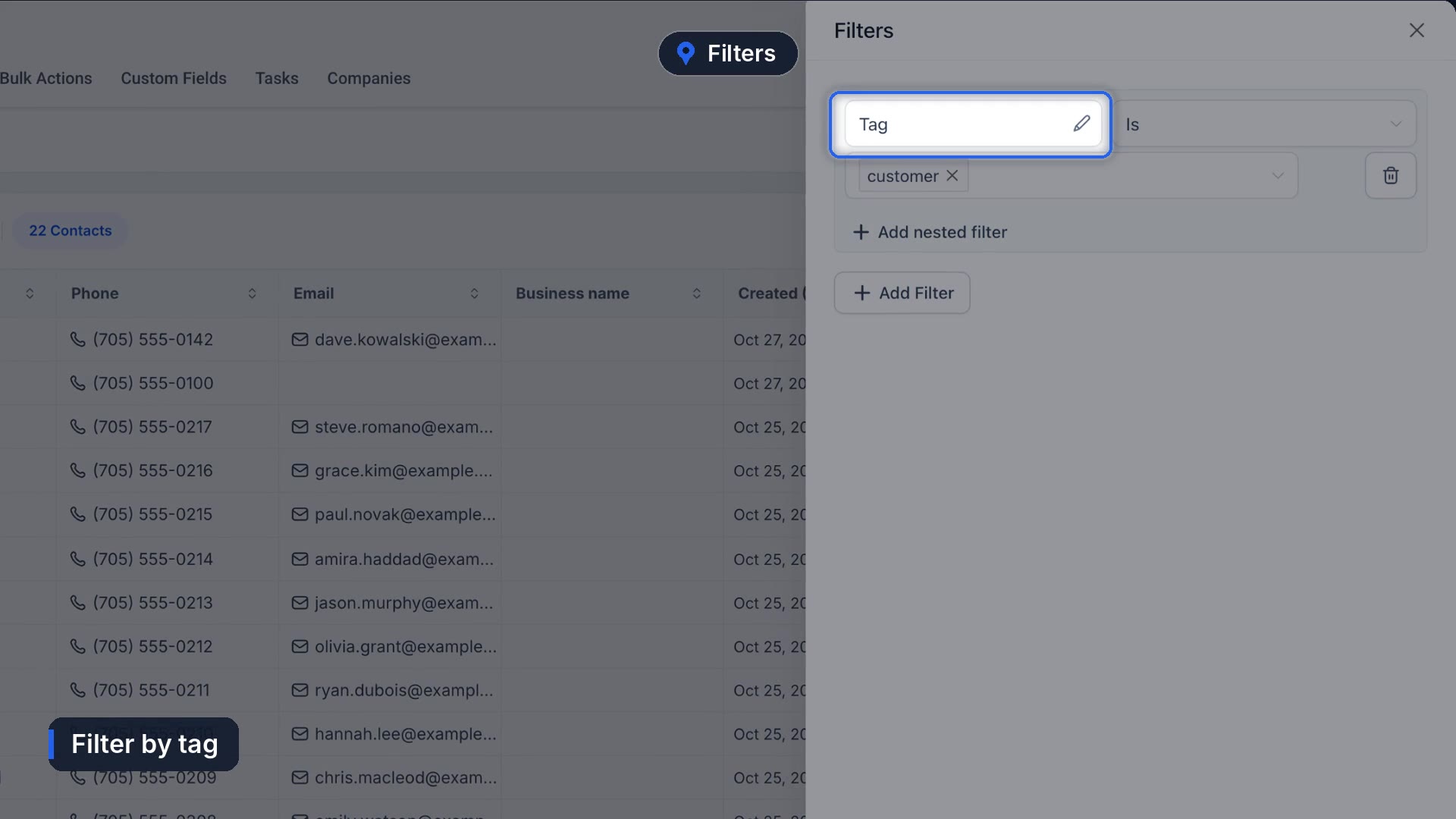
Click Filters. You can filter on any contact detail (city, source, tag, owner), do not disturb settings, activity like their last appointment or a workflow they're in, pipeline and stage, ad attribution like UTM source, and every custom field you've made.
Try one: search for Tag, leave it on "is," select customer and click Apply. Now the table only shows your customers.
How do you create a smart list?
Once a filter shows the people you want, save it. Click Add next to All (or the Unsaved changes menu, then Save as new smart list), name it, set its filters, sort and columns, and click Create. It becomes a tab.
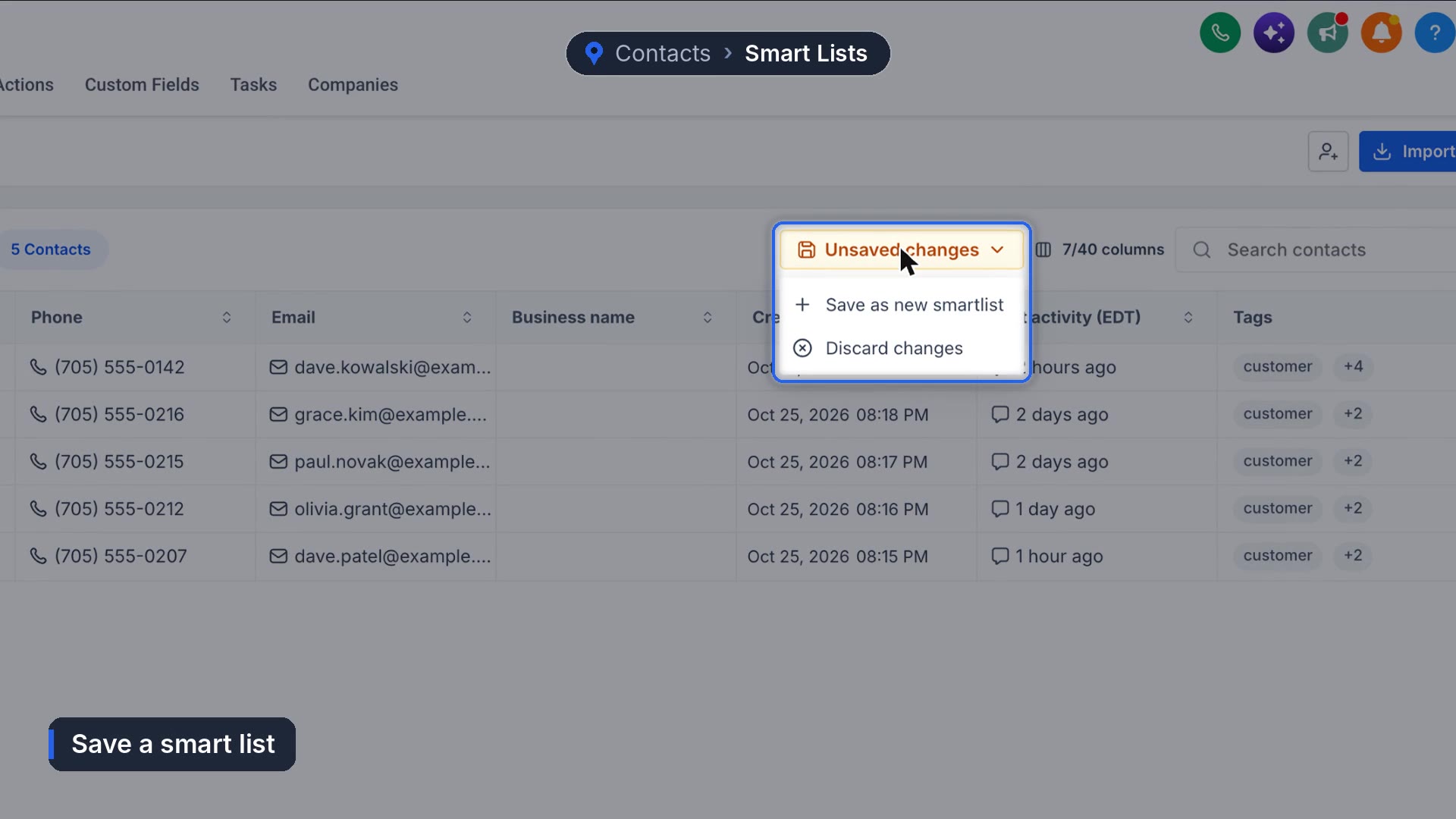
Smart lists update on their own, so a new customer lands in the list the moment they're tagged. You can't add people to one by hand. If someone's missing, the filter is what needs changing. HighLevel's smart list docs cover combining filters with AND conditions.
How do bulk actions work?
Tick the boxes to select contacts, or Select all to grab every match. A toolbar appears: export, trigger automation (add them to a workflow), send email, add tags and delete. More has text messages, WhatsApp, review requests, opportunities, removing tags and merging.
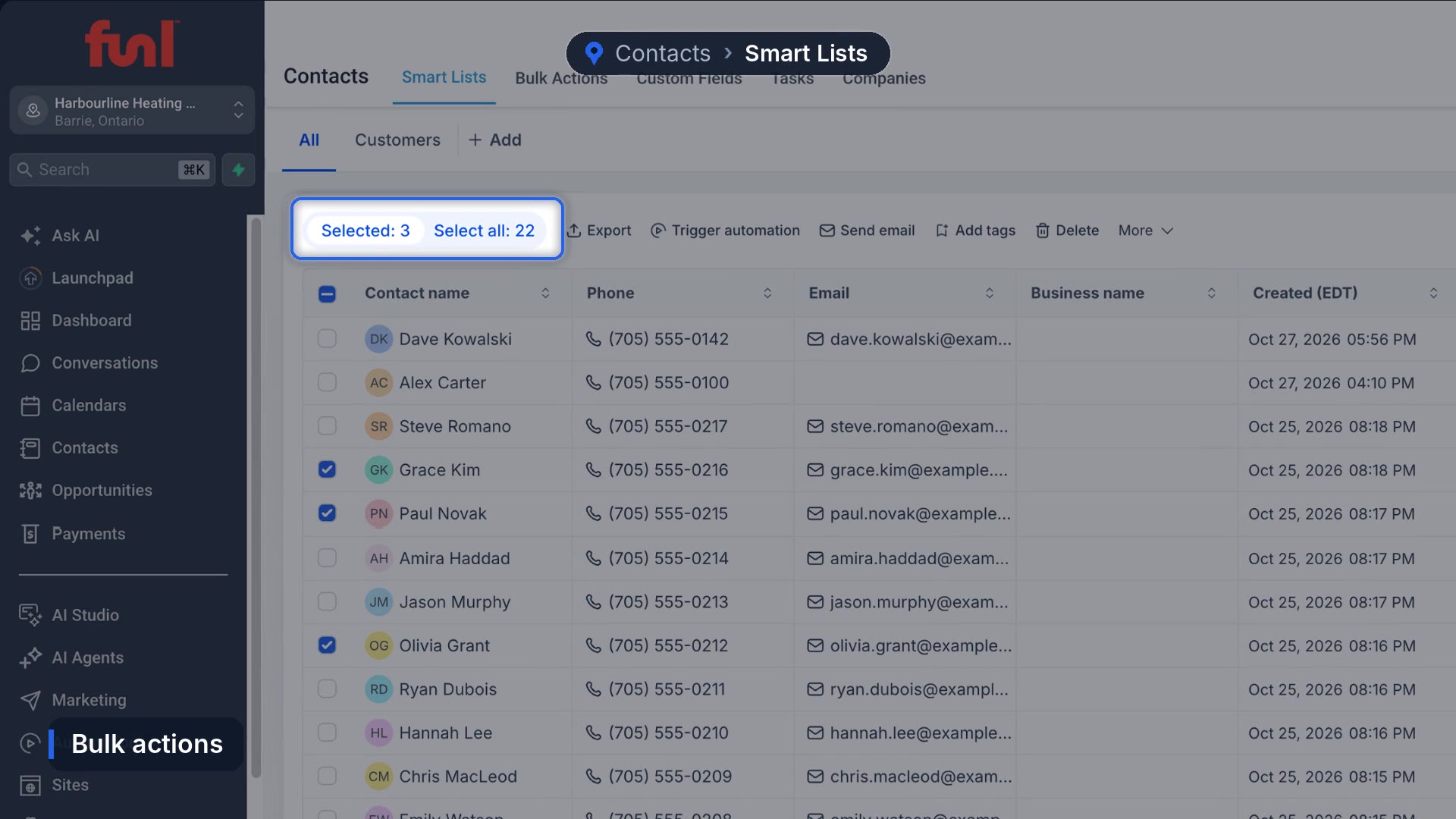
Every bulk job is logged on the Bulk Actions tab: what ran, who ran it, whether it finished, and the stats.
What's in the contact record?
Click a name to open it. On the left: owner, followers, tags, all fields, and a DND tab that turns off individual channels for that person so your automations respect their wishes. The middle is the full conversation, and you can reply from there. The icon rail on the right opens activity, tasks, notes, appointments, documents and payments.
The page tools under the three dots at the top right include export, restore deleted contacts, manage smart lists, and manage duplicates, which finds people who are in twice and merges them.
What we'd watch out for
A bulk action on the wrong smart list reaches the wrong people, and a text or email can't be unsent. The log on the Bulk Actions tab tells you what happened, but only after it's happened. Check the count beside Sort before you click send. We don't have a better safeguard than that.
Next steps that use these lists: send review requests to your customer list, track jobs in your sales pipeline, or start a workflow for a group in one click.
Frequently asked questions
How do I import contacts into GoHighLevel?
On the Contacts page, click Import and upload a spreadsheet. Map the columns to contact fields, then add a tag so you can find the import later.
What is a smart list in GoHighLevel?
A saved filter on your contacts. It updates automatically as contacts match or stop matching its conditions.
Can I manually add a contact to a smart list?
No. Contacts join a smart list by matching its filters, so add the tag or detail the list filters on.
How do I find duplicate contacts?
Open the three dot menu at the top right of Contacts and choose Manage duplicates to find and merge them.
Funl is built on HighLevel. Links to HighLevel are referral links, so we may earn a commission if you sign up.