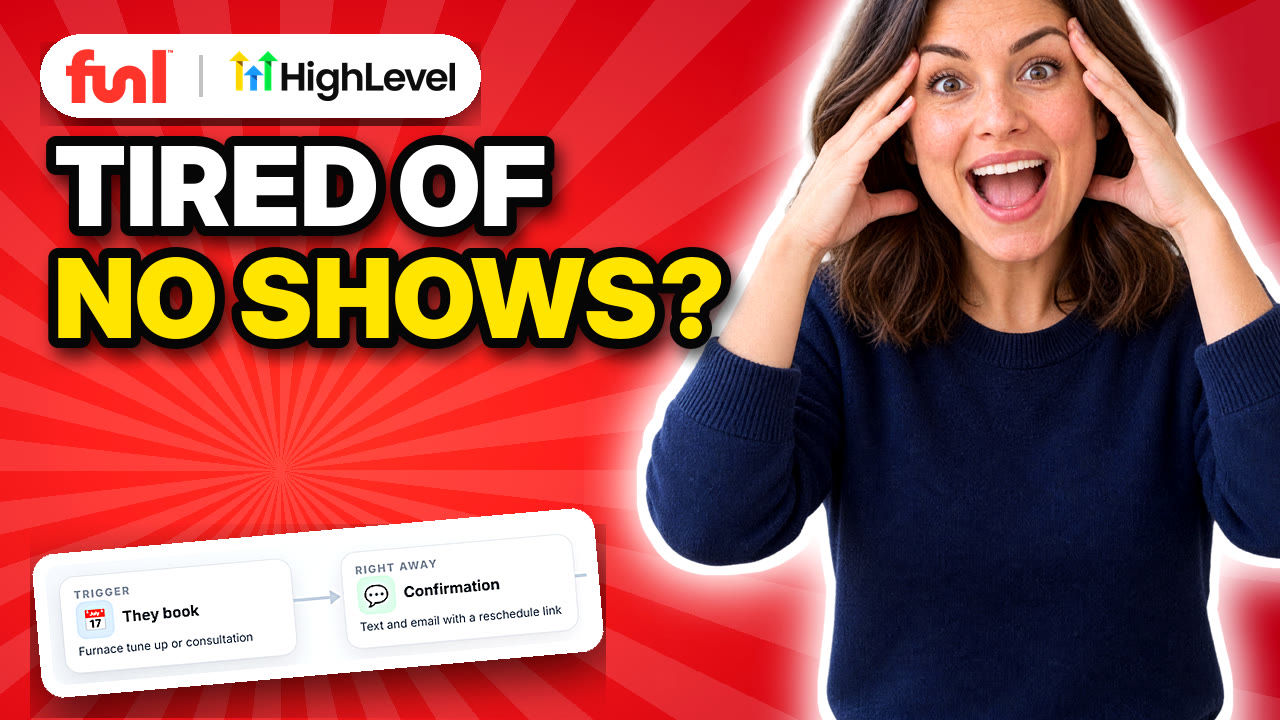
A no-show is the one slot you can't sell twice. The fix is boring and it works: a text the day before and another an hour before, sent automatically for every booking.
Quick answer: In GoHighLevel, build a workflow with the Customer Booked Appointment or Appointment Status trigger filtered to your calendar. Add a wait set to the appointment time, 1 day before, then a reminder email and SMS. Add a second wait for 1 hour before with a final SMS. Turn off the calendar's built-in reminders so customers don't get two of everything.
How do you set up appointment reminders in GoHighLevel?
1. Open or create the workflow
Go to Automation > Workflows. Every Funl account ships with a workflow called "03 Appointment Booked" that already has the confirmation and reminders in it. If you're starting fresh, click Create Workflow and start from scratch.
2. Set the trigger to the right calendar
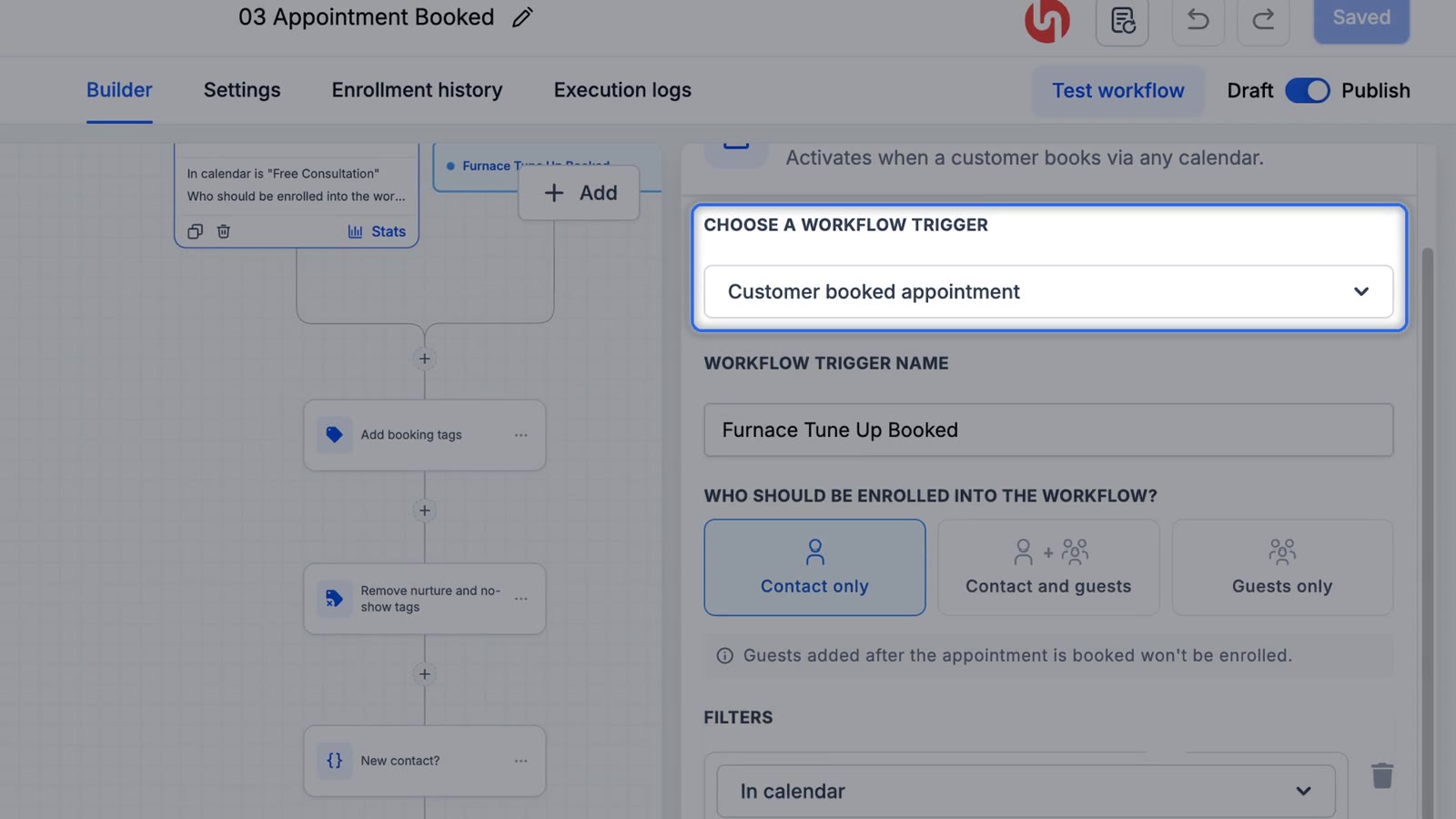
Use Customer Booked Appointment with an In calendar filter. Ours listens to the free consultation calendar. If you add a calendar later, like "furnace tune-up," add a second trigger for it. Both calendars then share the same reminders.
HighLevel also has an Appointment Status trigger that fires when an appointment is scheduled or its status changes. Either works for reminders. Appointment Status is the one you'll want for no-show follow up later.
3. Set the first wait correctly
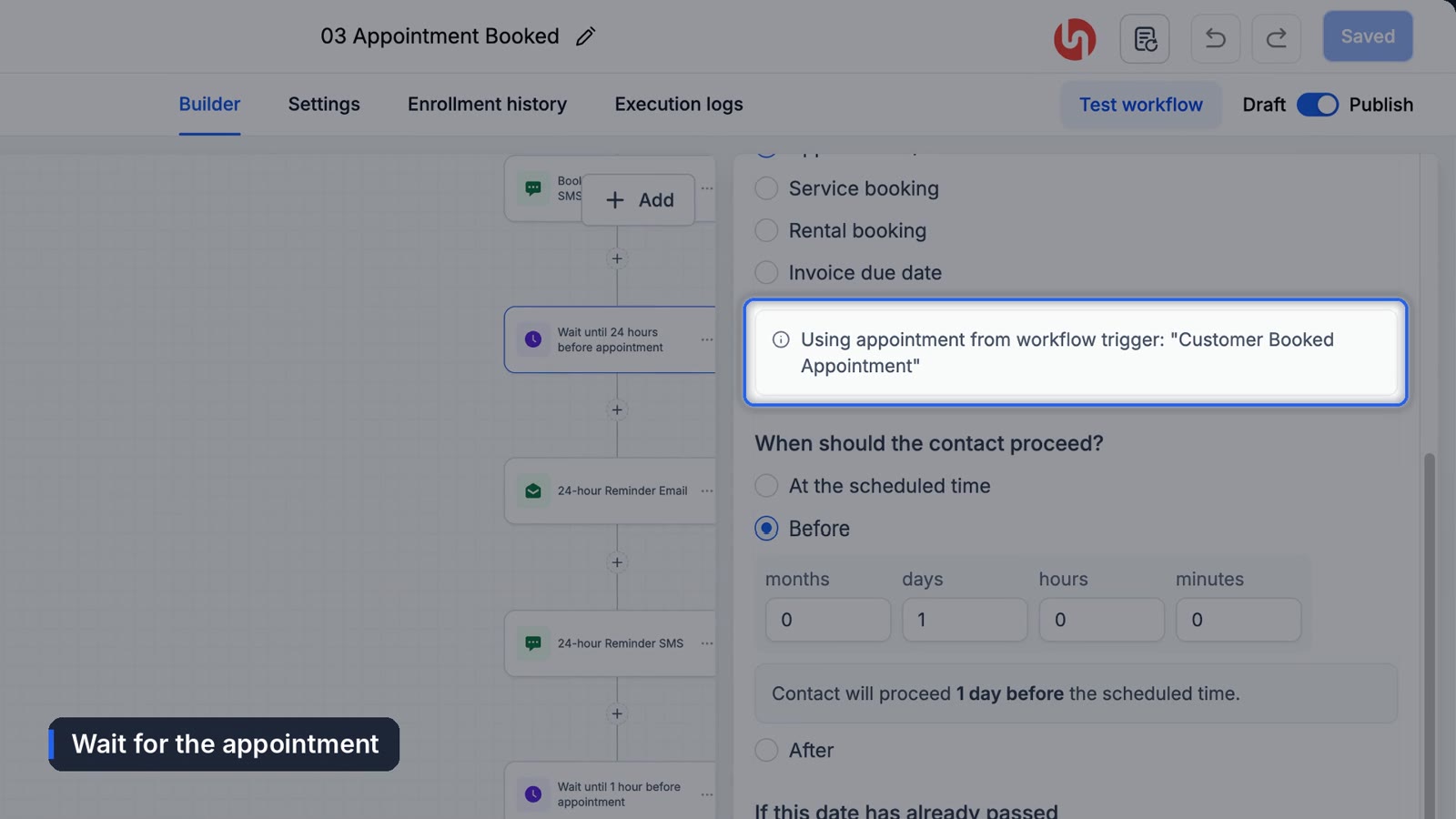
This is the step people get wrong. Don't use a plain timed wait like "wait 1 day." That counts from when they booked, not from the appointment.
Open the wait, choose the appointment as the date to wait for, pick before, and set it to one day. Now the reminder lands a day before the job no matter when they booked.
Under that, choose what happens if the time has already passed. Someone booking tonight for tomorrow morning shouldn't get a late "see you tomorrow." Set it to skip ahead to the next wait so they still get the hour-before text.
4. Write the reminders
The email: the time, anything they should have ready, and a button to reschedule. The text: who they're booked with, when, and how to change it. Something like:
Hi {{contact.first_name}}, reminder that you're booked with {{location.name}} tomorrow at {{appointment.start_time}}. Need to change it? {{appointment.reschedule_link}}Those appointment values only work because the workflow starts from an appointment trigger, which HighLevel's docs call out as the usual reason they come through blank.
Then a second wait set to one hour before, and one last short text. One line is plenty.
5. Turn off the calendar's built-in reminders
Open your calendar settings, then Notifications, and leave the built-in reminders switched off. Otherwise every customer gets two of everything, and the built-in ones won't match your branding.
6. Test it
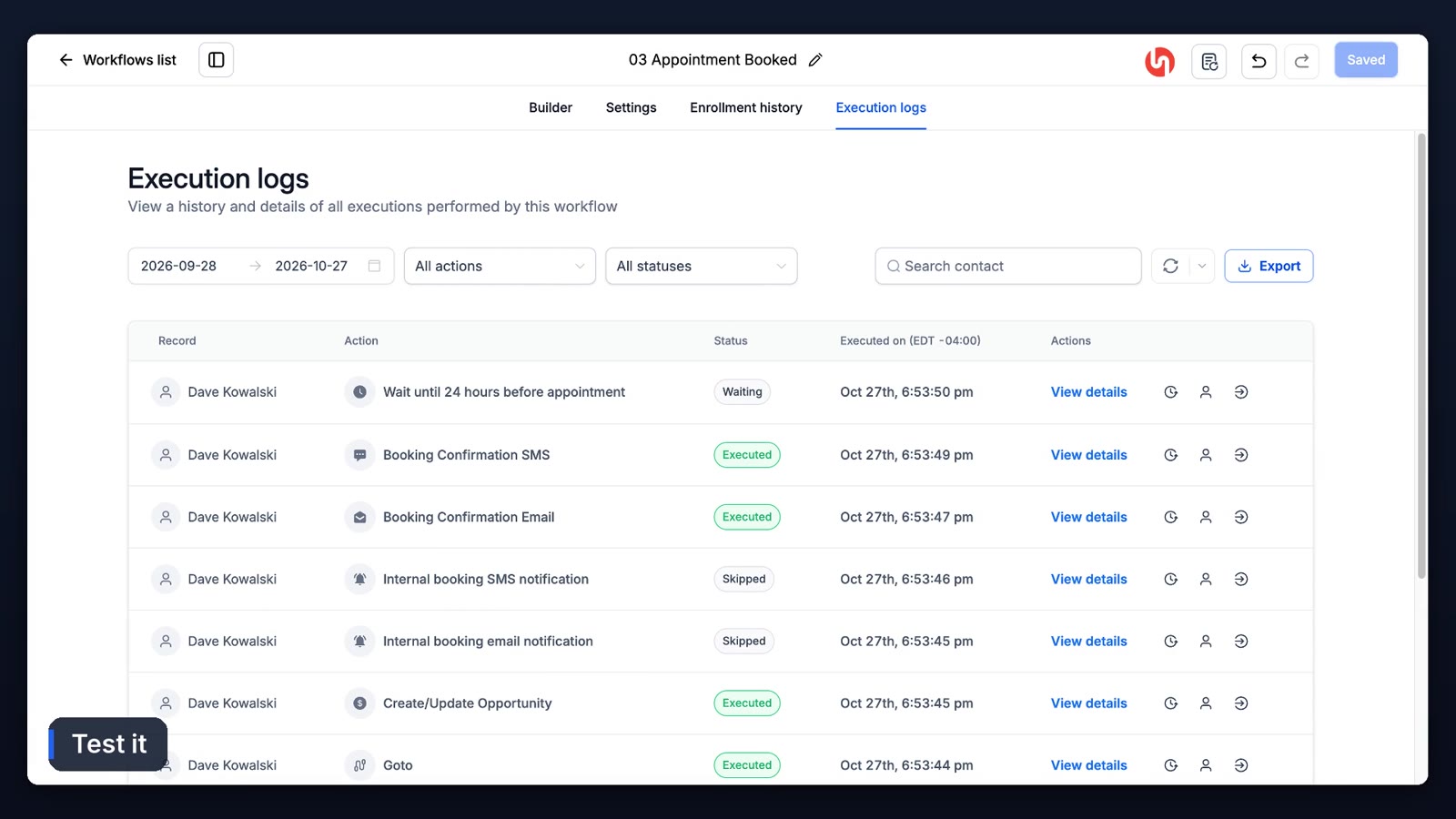
Book a time on your own booking page, then open the workflow's Execution Logs. The confirmation should show as sent and the first wait as waiting. Click View Details on the wait and it shows the exact time it'll move on, one day before your test appointment.
How many reminders should you send?
Two is the sweet spot for most local businesses. One the day before so they can reschedule, one an hour before so they don't forget. More than that starts to feel like nagging, and every text costs a little.
What reminders won't fix
Some people still won't show, and reminders do nothing for the customer who booked a free estimate just to get a number for comparison. Requiring a deposit at booking is the other lever. It works, and it also cuts the number of people who book at all. Which trade-off is right depends on your business, and we don't think there's one answer.
For the people who do no-show, a follow up workflow on the No Show status brings a surprising number back. That and the business side of it are in how to reduce no-shows. New to building these? Start with the workflow tutorial.
Frequently asked questions
How do I send a reminder 24 hours before an appointment in GoHighLevel?
Add a wait step, choose the appointment time as the date to wait for, select before, and set it to 1 day. Put your reminder SMS or email right after it.
Why are customers getting two reminders?
The calendar's built-in notifications are on as well as your workflow. Turn the built-in reminders off in the calendar's Notifications settings.
What happens if someone books less than a day ahead?
Set the wait to skip to the next step if the time has passed. They'll skip the day-before reminder and still get the hour-before text.
Why is {{appointment.start_time}} blank in my reminder?
Appointment values only fill in when the workflow starts from an appointment trigger, like Customer Booked Appointment or Appointment Status. A workflow started by a pipeline stage change has no appointment to read from. You also need a real booked appointment to test them.
Can reminders go to more than one calendar?
Yes. Add one Customer Booked Appointment trigger per calendar to the same workflow.
Funl is built on HighLevel. Links to HighLevel are referral links, so we may earn a commission if you sign up.