Ten reviews or ten thousand, somebody has to read them, and somebody has to reply. Reviews AI does the first part in seconds and can draft the second.
Quick answer: In GoHighLevel, go to Reputation > Reviews to see every review in one list, filter by rating, and read the AI Summary, which rewrites itself for whatever you filter. Then go to Reputation > Settings > Reviews AI and pick a mode: Auto Responses (writes and posts replies), Suggestive (drafts replies for you to approve) or Off. Start on Suggestive.
Where are reviews in GoHighLevel?
Click Reputation on the left menu, then Reviews across the top. Every review from every connected site shows up in one list, newest first, with the name, star rating, date and full text. On the left is your average rating and the star breakdown. Filters across the top cover rating, source, date range and search.
What does the AI Summary do?
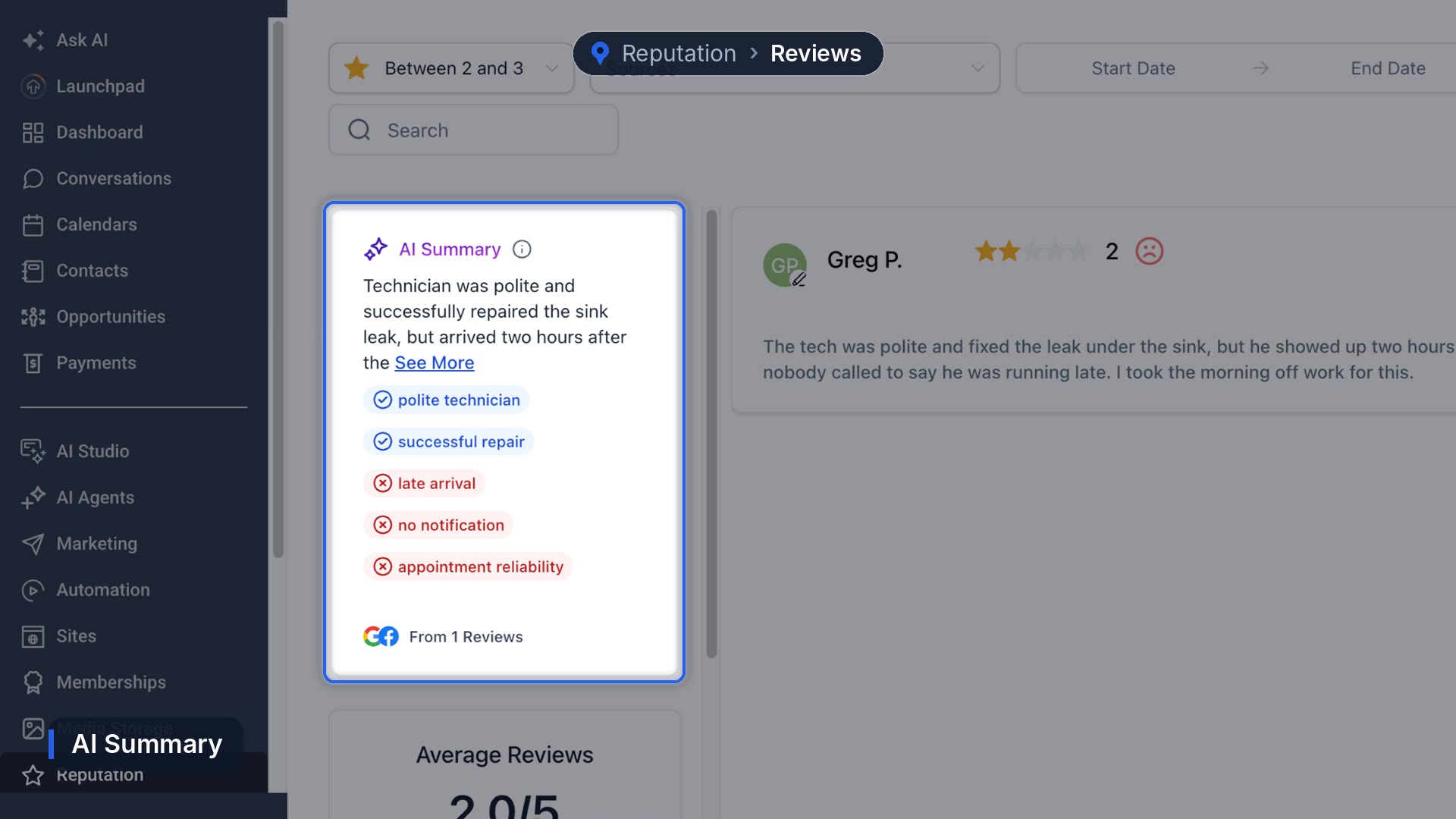
It reads the reviews on screen and pulls out what customers keep saying. Filter to two and three stars and it rewrites itself for just those. In the Harbourline demo account that surfaced "late arrival," "no notification" and "appointment reliability" from a single unhappy review.
Switch to four and five stars and it rewrites again. Click See more for the full version, which includes recurring issues worth fixing, even in good reviews.
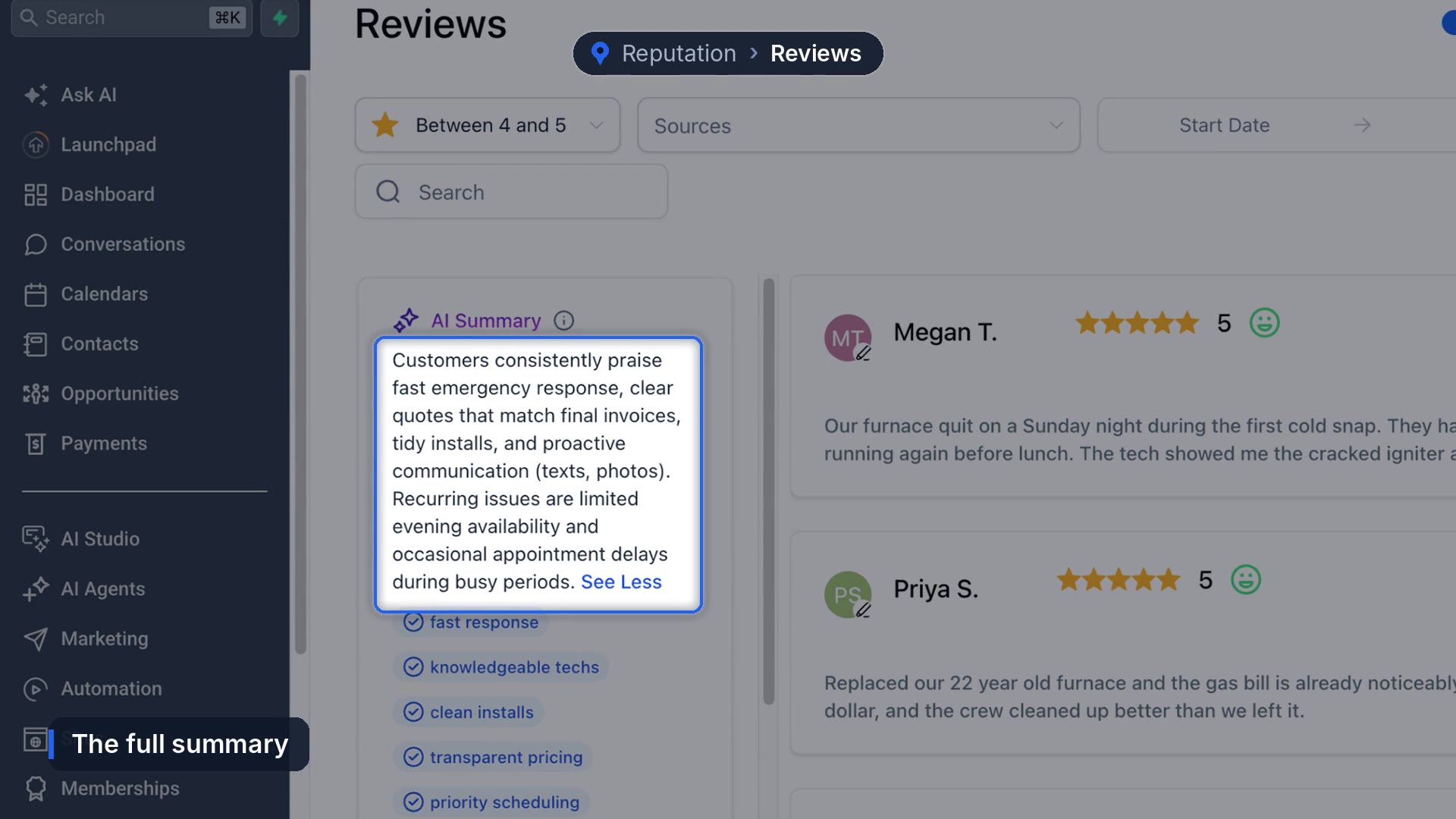
HighLevel calls this AI-powered review summaries. On an account with hundreds of reviews, it's the difference between guessing what customers think and knowing.
Can you add reviews from somewhere else?
Add Reviews has two options. Upload CSV takes a spreadsheet: download the template, match the columns, pick the platform they came from and upload. It's useful when you're moving from another tool. Add Manually is for one at a time, like real feedback you got by email. Never use it for reviews nobody wrote.
Reviews from Google or Facebook stay on those sites, so you reply to them rather than delete them.
How do you set up Reviews AI replies?
Click Settings in the Reputation menu, then Reviews AI. Pick a mode:
- Auto Responses writes and posts replies on its own.
- Suggestive drafts a reply and waits for you to approve it.
- Off turns AI replies off.
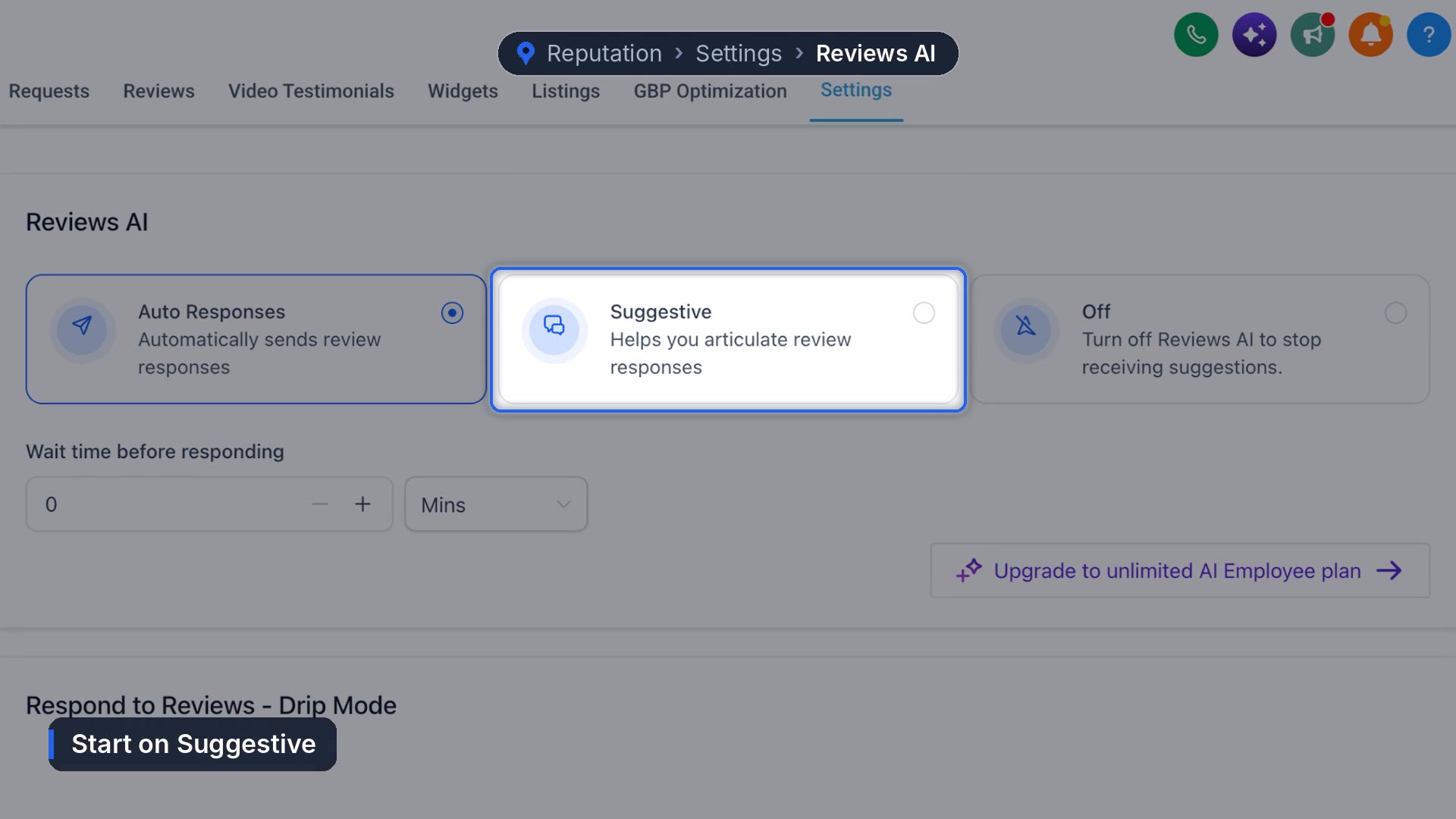
Start on Suggestive. Read a few weeks of drafts, fix anything that sounds wrong, and only switch to Auto Responses once you'd happily send what it writes without edits.
Wait time before responding sets how long it waits after a review comes in. A reply within seconds can look robotic. A few hours reads more like a person who checked in at lunch.
Drip Mode answers old, unreplied reviews a few at a time so a backlog doesn't flood your profile in one afternoon. It needs your Google Business Profile connected. Per HighLevel's Drip Mode docs, you can set daily limits and an allowed time window, and pause it any time.
Should AI reply to bad reviews?
Answer those yourself, even with Auto Responses on. Thank them, own what went wrong, and offer a way to make it right. Future customers read the reply more closely than the complaint.
What it costs, and what we can't tell you yet
Reviews AI is billed per response on usage pricing, according to HighLevel's Reviews AI guide, so a busy profile on Auto Responses costs more than a quiet one. Check the current rate in your account before you turn it on. What we can't tell you is how much replying moves your rating. It makes the business look attentive, but nobody gets a clean number on what that's worth.
Replying only helps if reviews keep coming in. Here's how to send review requests automatically, and the bigger picture on getting more Google reviews.
Frequently asked questions
What is Reviews AI in GoHighLevel?
A Reputation feature that summarizes your reviews and drafts or posts replies, in Suggestive or Auto Responses mode.
Does Reviews AI work with Google reviews?
Yes, once your Google Business Profile is connected. Facebook reviews work with a connected Facebook page.
Should I use Auto Responses or Suggestive?
Start with Suggestive, review the drafts for a few weeks, then switch to Auto Responses if you trust what it writes.
What is Drip Mode?
A setting that replies to older, unanswered reviews gradually instead of all at once.
Funl is built on HighLevel. Links to HighLevel are referral links, so we may earn a commission if you sign up.